This is an article which describes how to setup and manage Microsoft Edge Enterprise Sync.
If you’re looking for an article, that describes all the necessary requirements or helps with general information on the topic, check the official documentation: Configure Microsoft Edge enterprise sync | Microsoft Learn.
Microsoft Edge Enterprise Sync allows users to sync the following data across all the devices, where they are signed it:
- Favorites
- Passwords
- Addresses and more (form-fill)
- Collections
- Settings
- Extensions
- Open tabs (available in Microsoft Edge version 88 or later)
- History (available in Microsoft Edge version 88 or later)
🏃♂️ Necessary steps to take
- Optional: Manage Edge Enterprise Sync with GPOs
- Turn on Azure Information Protection (AIP) service
Optional: Manage Edge Enterprise Sync with GPOs
Why is this optional? You do not have to make any changes for Edge Enterprise Sync to work, but it does make sense to take a close look.
IMHO there are 6 GPOs to manage Edge Enterprise Sync, which are all located in the Microsoft Edge ADMX folder:
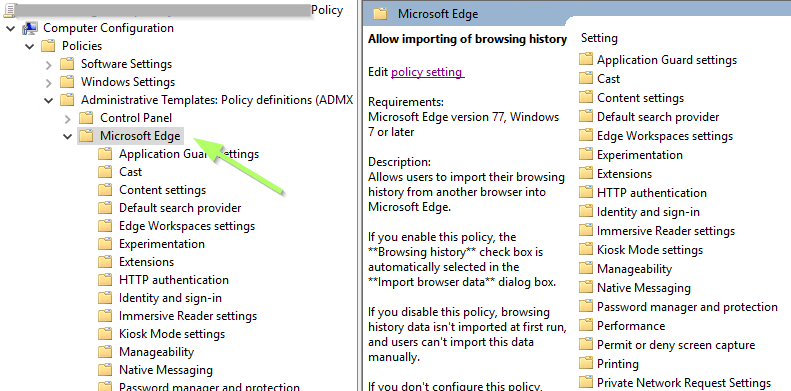
1.) „Disable synchronization of data using Microsoft Sync services“
This is basically self explaining. If you enable it, the sync services will stop. If you don’t configure it the users will be able to decide wether they want to use the sync or not. If you disable it, users will be forced to sync.
2.) „Disable saving browser history“
If you enable this GPO the user’s browser history will not be saved (as well as open tabs in Edge). If you do not configure it, browser history and open tabs will be saved.
3.) „Enable deleting browser and download history“
Not configuring or enabling this policy allows users to delete their browser and download history. And (surprise) if you disable this GPO, users won’t be able to delete their browser an download history AND additionally will not be able to sync their history and their tabs (even if the above mentioned GPO is enabled).
4.) „Configure the list of types that are excluded from synchronization“
The following data types can be excluded:
- Favorites
- Settings
- Passwords
- addressesAndMore (this included adresses, credit card information, etc.)
- Extensions
- History
- openTabs
- Collections
- Apps
5.) „Force synchronization of browser data and do not show the sync consent prompt“
Forces the sync of browser data and will NOT show the sync consent prompt.
6.) „Enable using roaming copies for Microsoft Edge profile data“
Enabling this will also save the settings stored in Microsoft Edge profiles to a file in the roaming user profile folder.
If this policy is disabled or not configured only the regular local profiles will be used.
Disabling GPO 1: „Disable synchronization of data using Microsoft Sync services“ does not have an impact on this and vice versa.
Turn on Azure Information Protection (AIP) service
In newer tenants (early 2018 or later) the AIP service might be turned on by default. To check, if the AIP service is turned on or not, we have to use PowerShell:
# Install the AIPService PowerShell module
Install-Module -Name AIPservice


# Connect to AIPService using admin credentials
Connect-AipService


# Retrieve the current status of the AIPService in your tenant
Get-AipService
The output should look like the following:

In the above screenshot you can see, that the AIPService in that particular tenant was already enabled.
If this is not the case, run „Enable-AipService„. Keep in mind, that this will automatically allow other applications to use AIP as well. Users will get access to encryption options with AIP in Outlook by default.
If you don’t want to enable this with a big bang, create a security group in your AD and add the users for which the AIP service should be enabled. Run the following command:
$groupID = "<Enter group ID>

Set-AipServiceOnboardingControlPolicy -UseRmsUserLicense $False -SecurityGroupObjectId $groupID
To enable AIP service for all users just run:
Set-AipServiceOnboardingControlPolicy -UseRmsUserLicense $FalseThat’s it! Well done! 👏
Interesting additional read: Microsoft Edge and Enterprise State Roaming | Microsoft Learn.
 Solvoj
Hinterlasse einen Kommentar