This article follows the steps I took to setup Windows Hello for Business (WHfB) Cloud Kerberos Trust. This is not a glossy guide, but a transparent approach including mistakes, that I made and errors, that I ran into (which makes this a longer read).
I am assuming, that we are in a hybrid environment and that you fulfill the following requirements:
- Entra Connect is set up
- All Windows devices are Hybrid Entra ID joined
- Your DCs are at least on Windows Server 2016
- Your Windows devices are either at least Windows 10/21H2 or Windows 11
- Access to account.microsoft.com is possible from your network
- (Azure) MFA has already been deployed/set up in your environment
💡 WHfB does not require Entra ID P1 licenses or higher
According to Microsoft’s documentation you „only“ have to follow two steps:
1.) Setup Cloud Kerberos Trust
2.) Deploy WHfB
For reference: Windows Hello for Business cloud Kerberos trust clients configuration and enrollment – Windows Security | Microsoft Learn
Let’s see, if this is as easy, as it sounds 😉.
1.) Setup Cloud Kerberos Trust
There could be a chance, that you already set up Cloud Kerberos Trust by enabling passwordless security key sign-in to on-prem ressources via Entra ID.
For reference: Passwordless security key sign-in to on-premises resources – Microsoft Entra ID | Microsoft Learn
For me this was not the case.
Cloud Kerberos Trust relies on Microsoft Entra Kerberos (MEK). MEK allows Entra ID to issue TGTs, which then can be used to authenticate to on-prem ressources. MEK uses a computer object called „AzureADKerberos“, which is a RODC (read only domain controller). This computer object is only used to issue TGTs and not associated with any physical server in your environment.
To create „AzureADKerberos“, you have to complete the following steps:
Install AzureADHybridAuthenticationManagement
The module can be installed on any computer, that has access to your AD.
-AllowClobber is added here, as AzureADHybridAuthenticationManagement uses features of the AzureADPreview module. If the AzureAD module has already been installed, this might cause conflict, that we can pass by adding -AllowClobber.
Install-Module -Name AzureADHybridAuthenticationManagement -AllowClobber
If TLS 1.2 is not used by default, run the following command before trying to install the above module:
[Net.ServicePointManager]::SecurityProtocol = [Net.ServicePointManager]::SecurityProtocol -bor [Net.SecurityProtocolType]::Tls12Run the following:
# specify your domain
$domain = "COMPANY.AT"

# UPN of a global admin
$UPN = "john.doe@company.at"

# Credentials of a domain admin
$cred = Get-Credential

# create the computer object and publish it to Entra ID
Set-AzureADKerberosServer -Domain $domain -UserPrincipalName $UPN -DomainCredential $cred
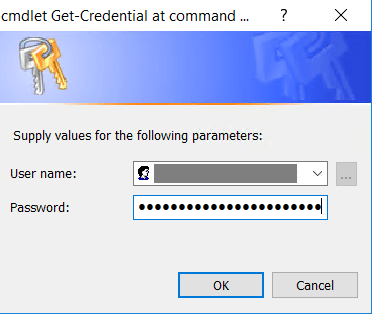
Enter your domain admin credentials:
Enter your global admin credentials:
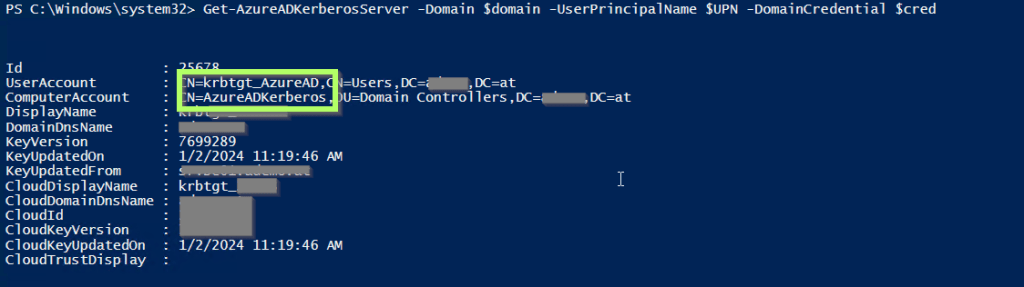
Check, if the computer object was created by running the following:
Get-AzureADKerberosServer -Domain $domain -UserPrincipalName $UPN -DomainCredential $cred
Your output should look like this:
2.) Configure the WHfB policy
You can either do this via Intune or GPO. In this guide I will use a GPO.
Create a new GPO named WHfB Registration in Group Policy Manager:

After you’ve created the GPO, perform a right click and „Edit“ it.
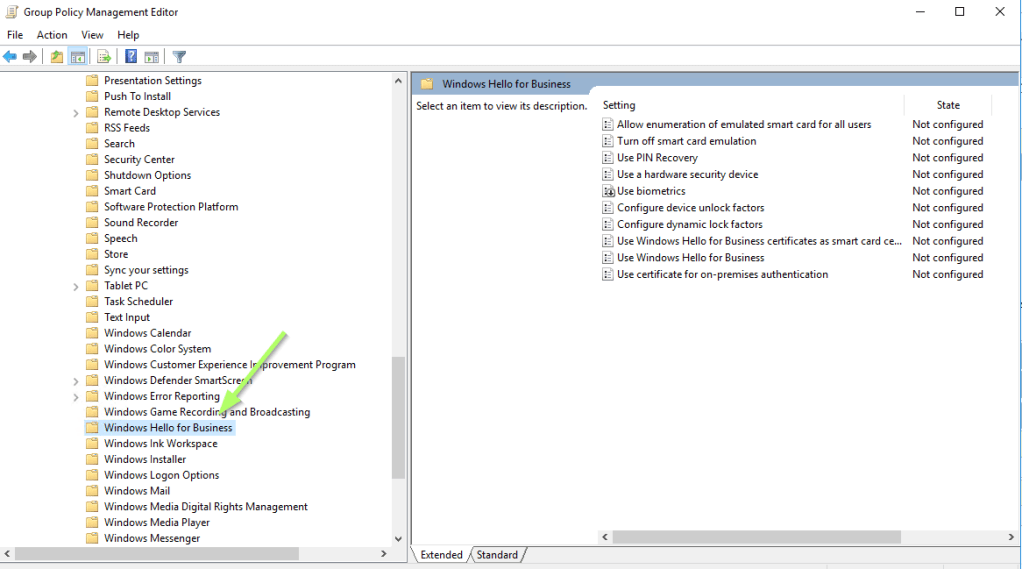
Under Computer Configuration / Policies / Administrative Templates / Windows Components you should find Windows Hello for Business:
Edit Use Windows Hello for Business and Enable it:

You should also enable Use a hardware security device. This is optional, but makes sure, that the key creation is hardware based (keep in mind, that his requires a TPM 1.2 or 2.0 chip) and not software based. Software based keys could potentially be used on other devices as well.
What’s still missing is: Use cloud Kerberos trust for on-premises authentication.
By default this wasn’t available on my server. So we have to update the GP definitions. To do so, we need a computer, that supports Cloud Kerberos Trust and copy the ADMX (ADML) files from there.
I copied the Passport.admx file from a Windows 10 client and replaced the original one under C:\Windows\PolicyDefinitions on my server.
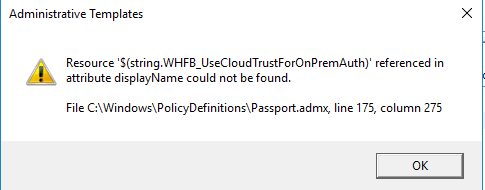
I tried to edit the GPO again and was confronted with the following error:
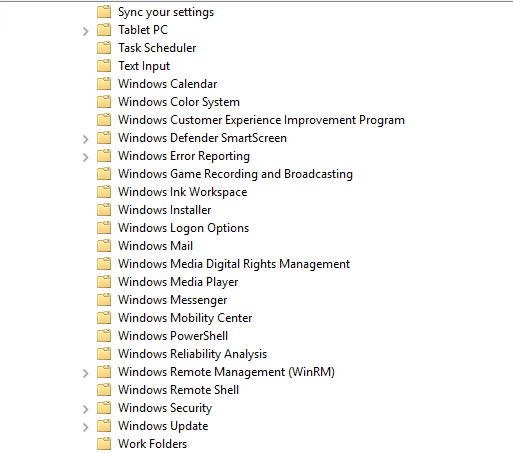
Additionally Windows Hello for Business was not available anymore:
The above error appears, if there is no corresponding string in the ADML file. So make sure to replace both: The Passport.admx and – in my case in the en-US folder the Passport.adml.
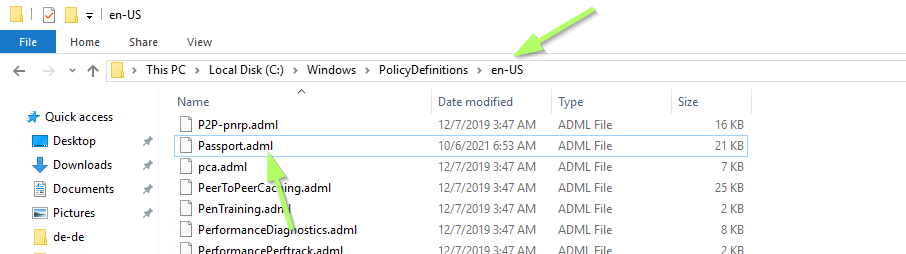
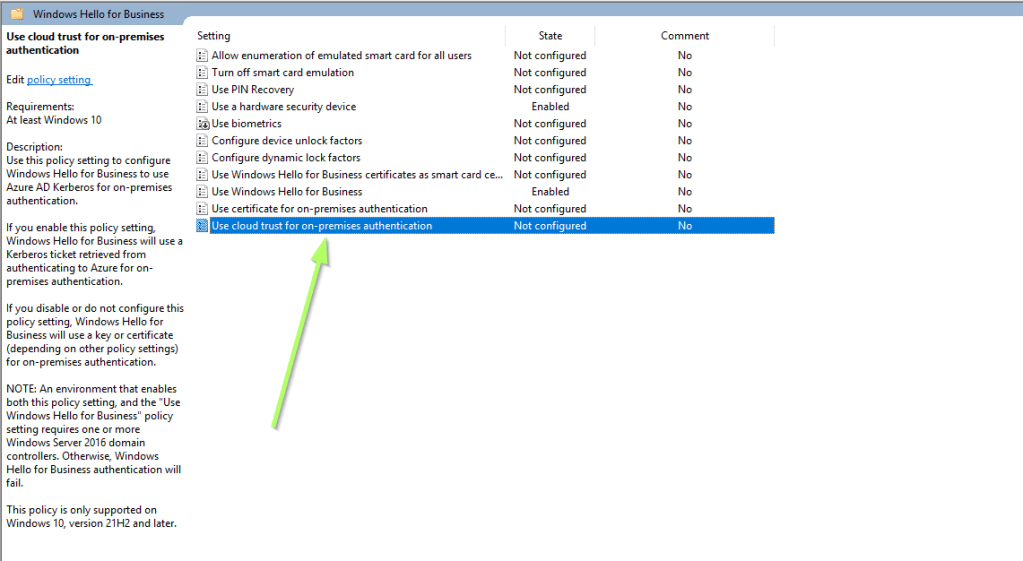
After that, the Use cloud trust for on-premises authentication setting appears an can be enabled.
To rollout WHfB registration to a specified group only, create a security group. In my case I named it WHfB registration and add your test clients.
💡 The GPO HAS to be scoped to computer objects and CAN NOT be scoped to users.
Add the security group to Security Filtering (we will link the GPO to an existing OU which contains all clients. Adding the group to security filtering makes sure, that only the included computers are affected by the GPO and not every client):

Remove Authenticated Users from Security Filtering:

Open the Delegation tab and add Authenticated Users:
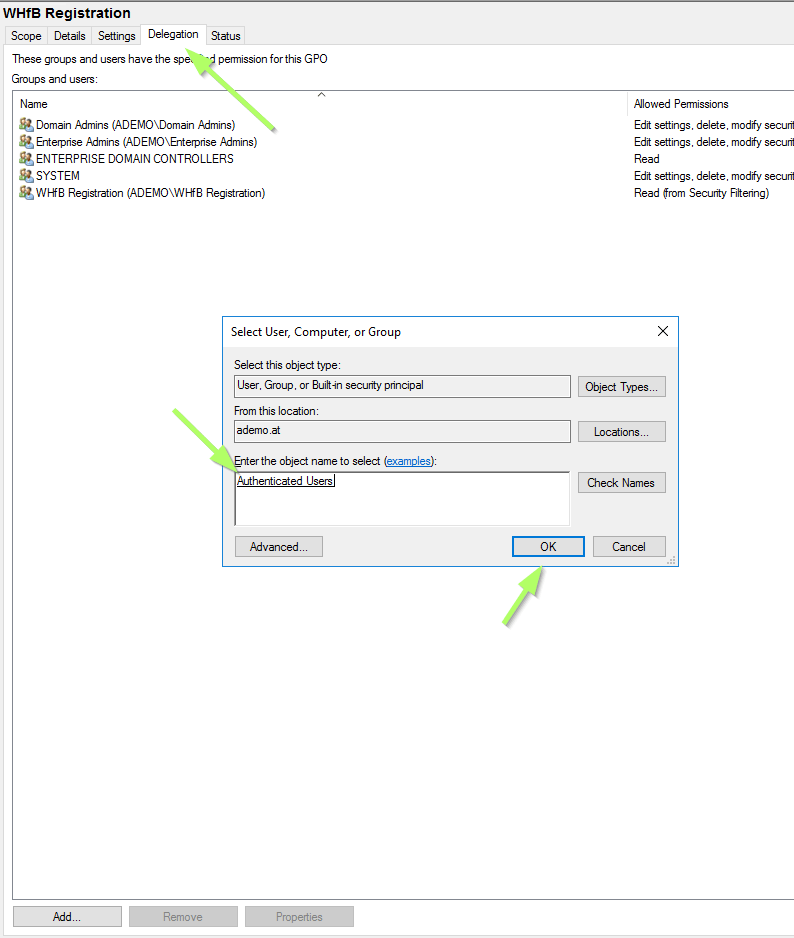
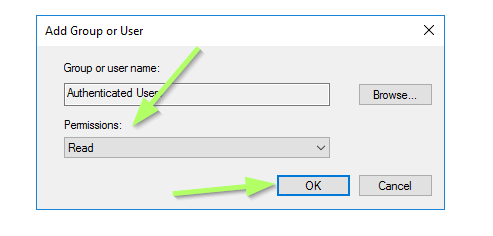
Make sure to set Read permissions (this should be the default value) and approve with OK:
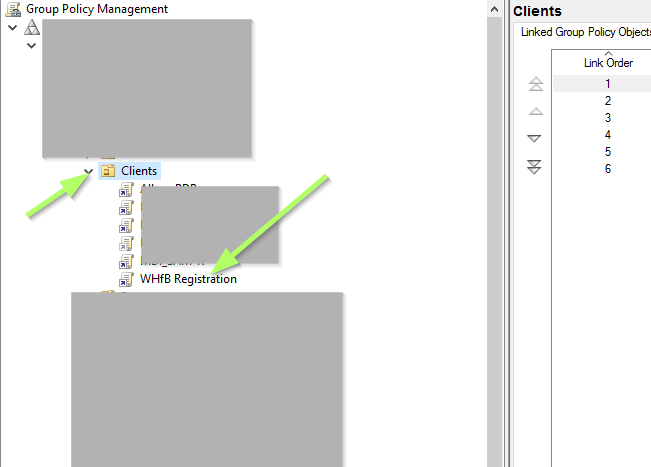
Link the GPO you created to an existing OU:
3.) Test WHfB registration on a client
Now it’s time to login and start Windows Hello for Business registration on a client. What happened for me was: Nothing.
Let’s us first check, if the GPO was applied by opening the Command Prompt and navigating to C:\Users\<User>\Documents. From there run:
dir C:\Users\<User>\Documents
GPResult /h GPReport.html
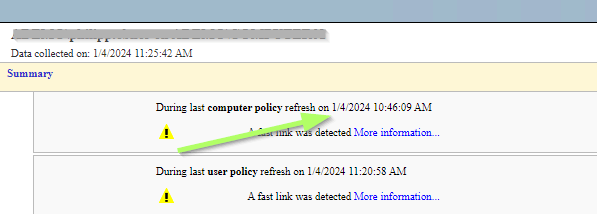
I opened the HTML file and realized, that the last computer policy refresh was before I linked the GPO to the OU:
Open the Command Prompt again and run:
GPUpdate /force We should be fine:
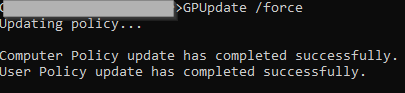
The GPO was not applied.
Next I ran the Group Policy Modeling Wizard to check for issues there.

I selected the one DC, that is in my environment:
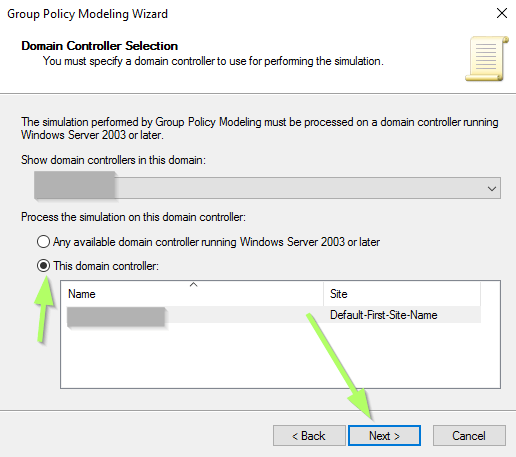
And selected the user and client, that I am using for my tests. For this test I will just skip to the final page (by activating the checkbox below):

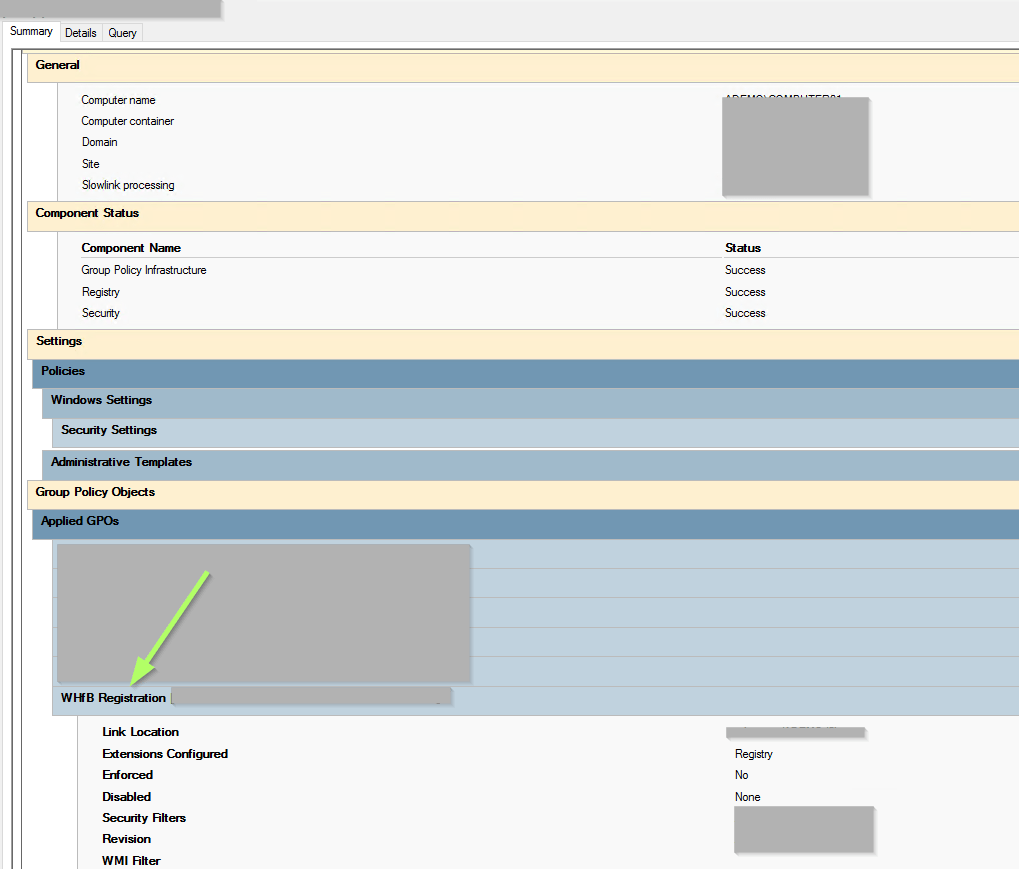
I linked the GPO correctly according to the Group Policy Modeling Wizard:
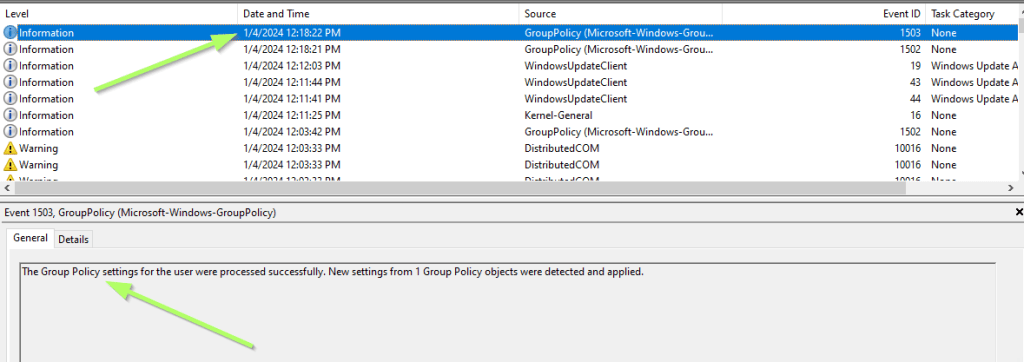
Next I checked the Event Viewer on my client.
Under Windows Logs / System you’ll find GPO related information. According to an entry a new GPO was detected and applied (EDIT: It shows the wrong entry in the screenshot, but the GPO was applied):
To quickly check, which GPOs are applied, you can also use the command below instead of generating the HTML report. Make sure to add /scope:computer as GPResult (by default) scopes to the user and the GPO, that we scoped to the computer would not be displayed:
GPResult /r /scope:computer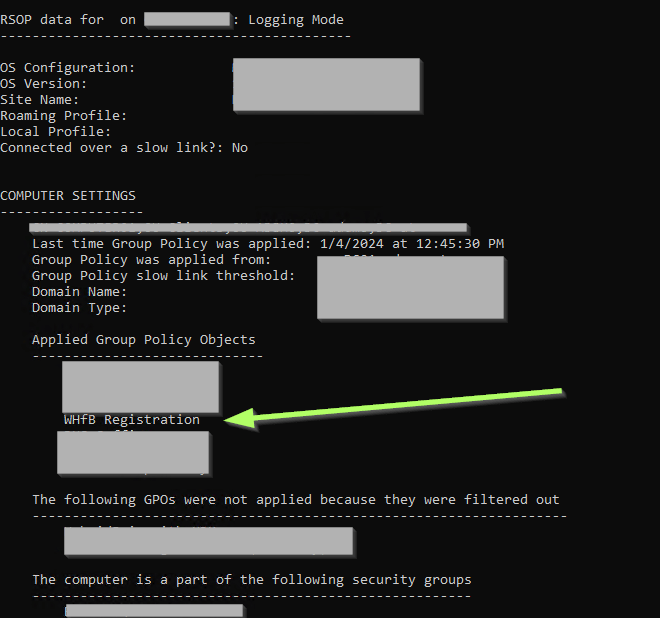
As the WHfB Registration did not start, troubleshooting goes on. Using the Event Viewer I checked Application and Services Logs / Microsoft / Windows / User Device Registration, which showed a warning:
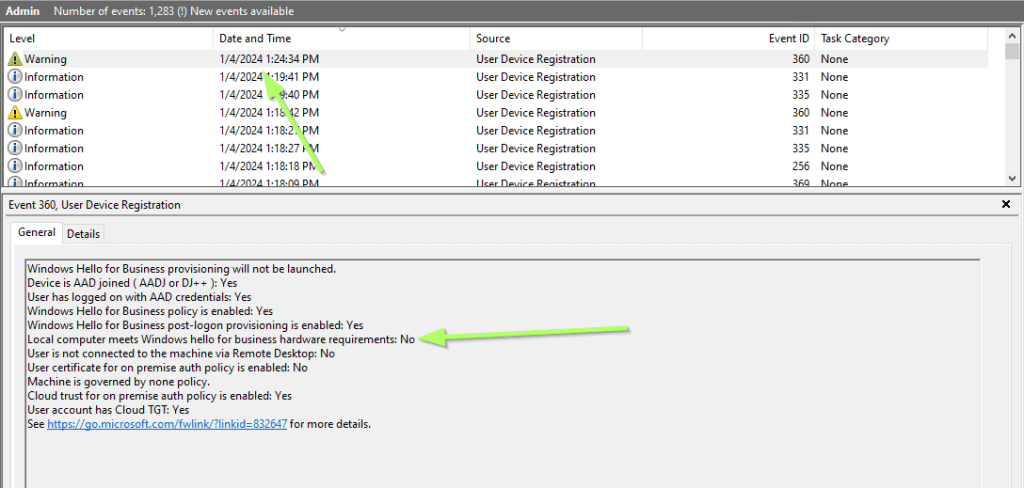
There is an entry in the Event Viewer called HelloForBusiness, which gives detailed information about our failed provisiong process.
Checking Application and Services Logs / Microsoft / Windows / HelloForBusiness shows the following:
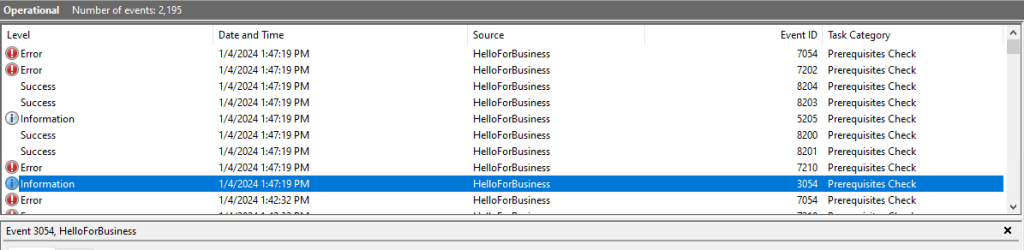
I am going to summarize what it said:
- The account has Cloud TGT ✔
- The Cloud Trust for On-Premise Auth is being used ✔
- WHfB is enabled ✔
- WHfB post-logon provisioning is enabled ✔
- The User is using RDP to access the client ❌
- The Client does not fullfill the hardware requirements ❌
This leads to a sudden end of this article. As I am using a VM without a virtual TPM chip and as WHfB Cloud Kerberos Trust does not support RDP, I assume, that you can not register for WHfB while connecting via RDP.
 Solvoj
Hinterlasse einen Kommentar