You might know extension attributes in AD and potentially even use them i.e. as a property in a dynamic M365 group.
What if the users, that you want to add to your group are not synced from AD?
In this blog post we’ll go through all the necessary steps to create custom attributes for „cloud only“ users, assign them and even use them in a dynamic group.
Create an app object in Azure AD
You’ll need an app object in Azure AD, which you can add custom attributes to.
💡 If you’d rather use PowerShell, here’s a script, that I wrote, which does not only create the app and a service principal, but also let’s you create custom attributes and assign them to a user: GitHub.
Using the GUI, follow these steps
Create an app registration
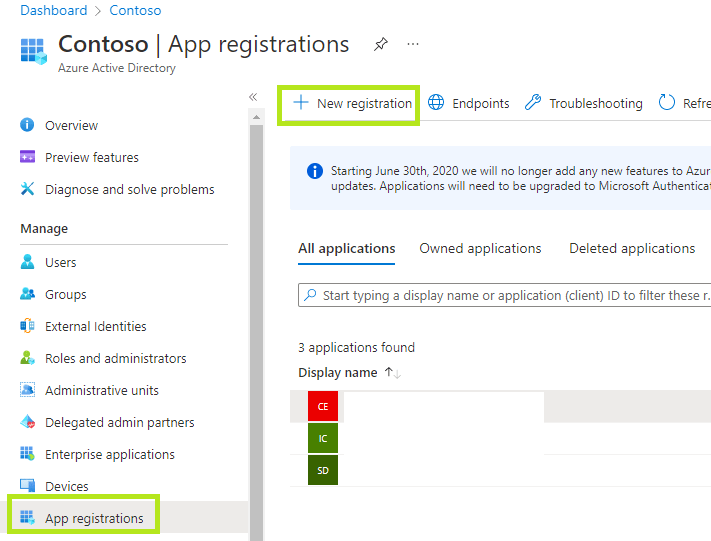
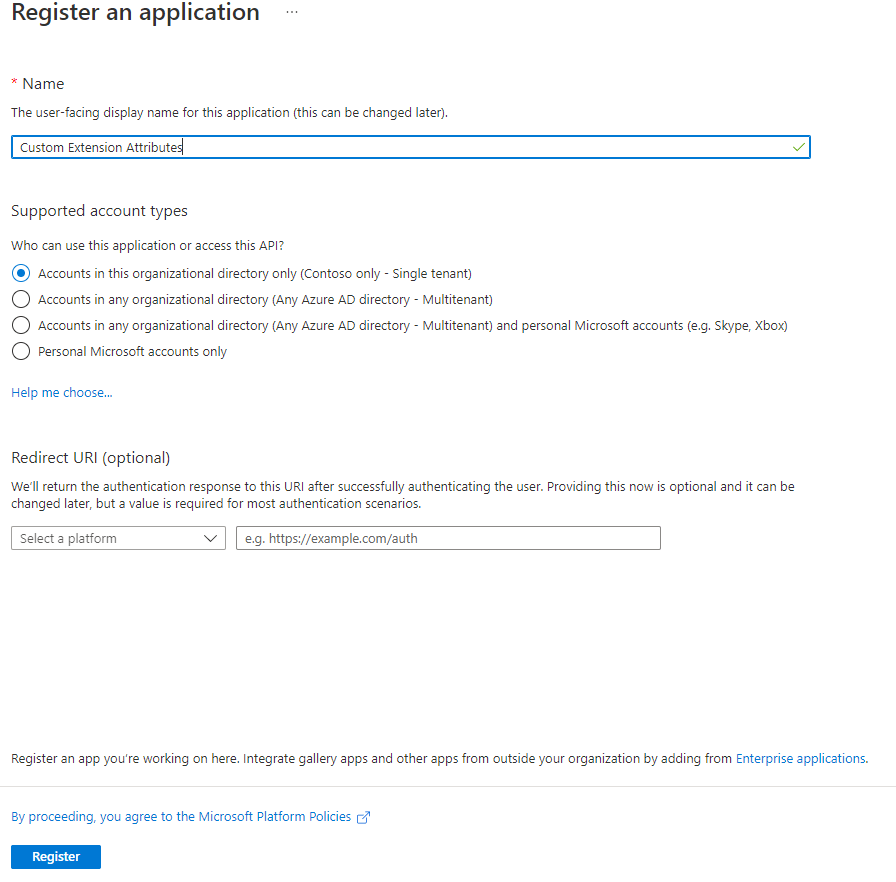
Enter a „Name“ and leave everything else as it is
Copy the ObjectID

We’ll use PowerShell for the next steps (find the whole script here: GitHub)
Create a new Extension Property and add an Attribute name
Create a new Extension Property (we’ll need the Extension Name in the next step, that’s why we put the cmdlet into a variable). Make sure to change the Extension Attribute Name:
$ExtensionName = (New-AzureADApplicationExtensionProperty -ObjectId $AppObjectId -Name „<ExtensionAttributeName>„ -DataType "String" -TargetObjects "User").Name
Add the Extension to a user
Get the Object ID of a specific user

Open PowerShell and create a variable with the Object ID
$UserObjectID = "<ObjectID>"
Run the following command to add the newly created Extension to a user and set a value.
Set-AzureADUserExtension -ObjectId $UserObjectID -ExtensionName $ExtensionName -ExtensionValue "Guest"
See the Extension and the set value
Let’s run the following command
Get-AzureADUserExtension -ObjectId $UserObjectID

As far as I am concerned, you can only set one value and not multiple ones (setting another value will result in overwriting the first one).
Use the extension in a dynamic group
First we’ll need the application ID (the one from the app registration we created in the first step):

When configuring the dynamic group membership, choose „Get custom extension attribute“

And paste the application ID
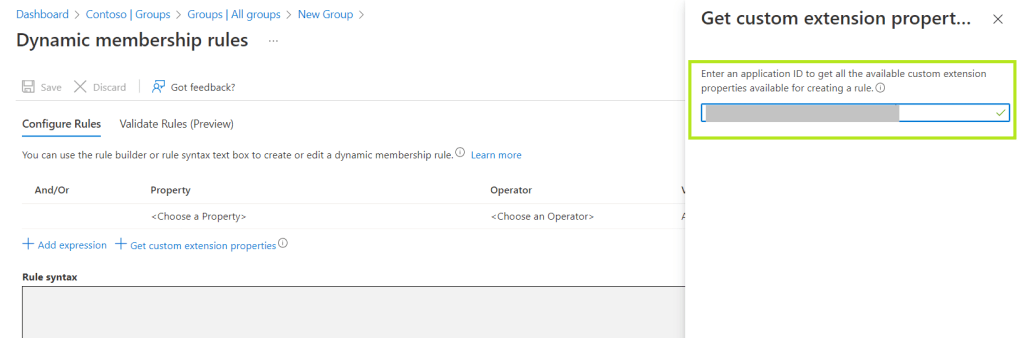
Now you’ll be able to find the extension as a property in the dropdown menu:

And after a few minutes, Isaiah is part of the group – great success!

 Solvoj
Hinterlasse einen Kommentar