You can use access packages (AP) in Azure AD to easily manage time based access to a group. No need for a script, a scheduled task, etc.
💡 You’ll need an Azure AD Premium P2 license for this.
Creating the access package
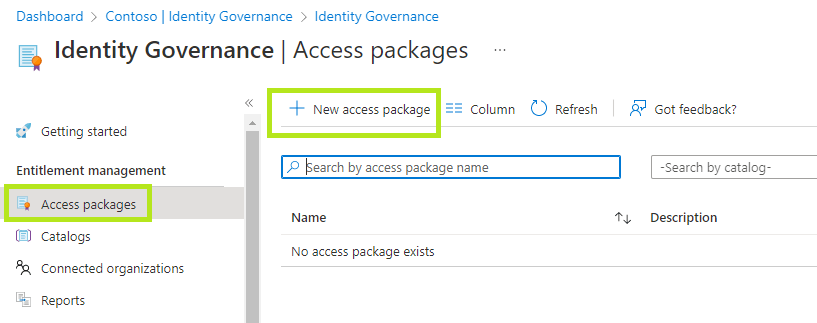
Head over to the Identity Governance pane and select „Access packages“ followed by „New access package“:
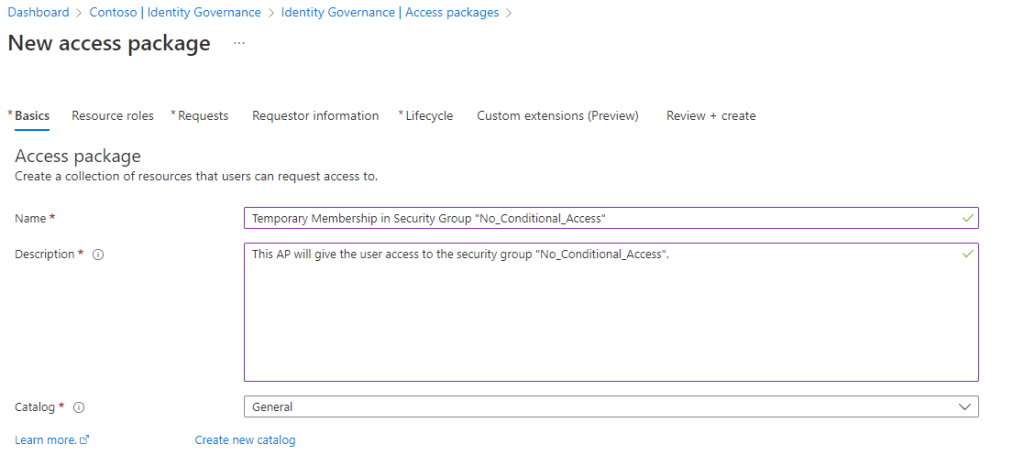
Name your AP and add a description:
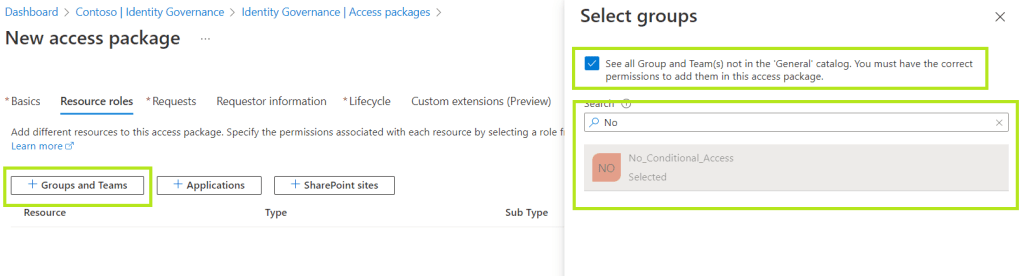
Select „Groups and Teams“ to add a group, then check „See all Group and Team(s)“ and select the desired group: In my case „No_Conditional_Access“.
Select the role, the added user will have access to and go to the next step:

Select, that only an admin can assign users to the AP (this really depends on your use case. In my case, I want users to temporarily be excepted from certain conditional access policies. There is no need for users to request that by themselves):
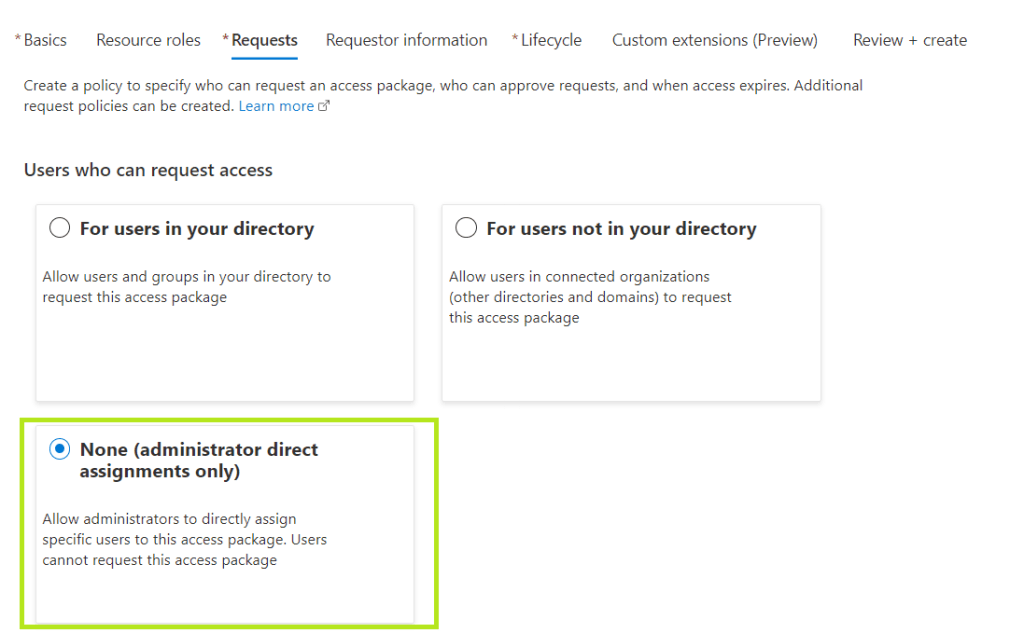
Do not forget to enable new requests (this actually does not matter if you selected, that only admins can assign users):

The requestor information is not relevant for my use case. So I’ll just leave this blank:

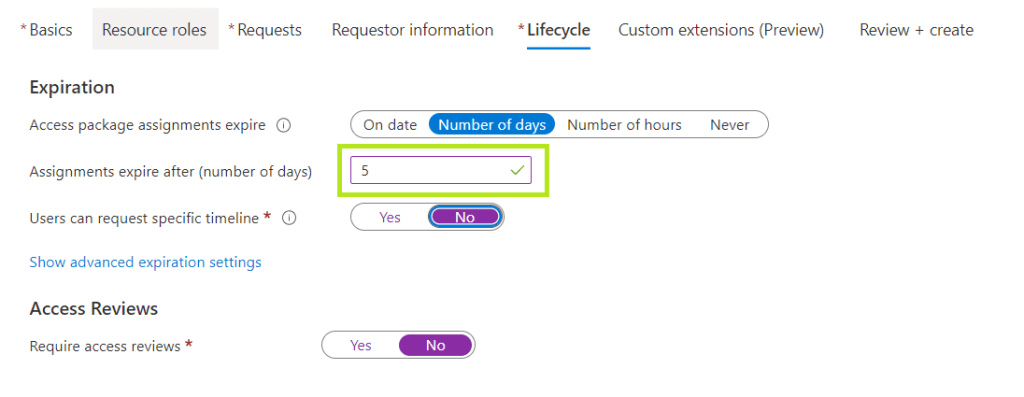
The expiration settings are really self explaining. I went for a specific number of days (5 in my case), the specific timeline does not matter (as admins are assigning the access package) and so does the requirement for access reviews.
💡 If you click on „Show advanced expiration settings“ you’ll get to enable, that users can extend their access to the AP. The default is „No“, which I left untouched here.
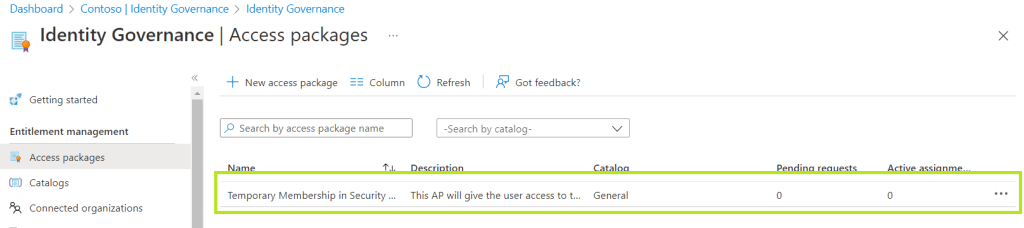
I just skipped custom extensions (in preview right now) as I don’t need them for my use case and created the AP, which is now available in the list of AP in my tenant:
Assigning users to the AP
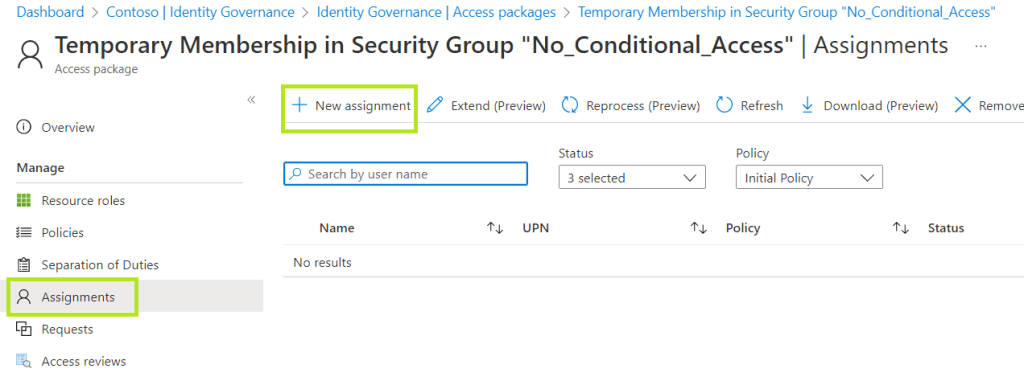
Open the AP and click the „Assignments“ pane, followed by „New assigment“.
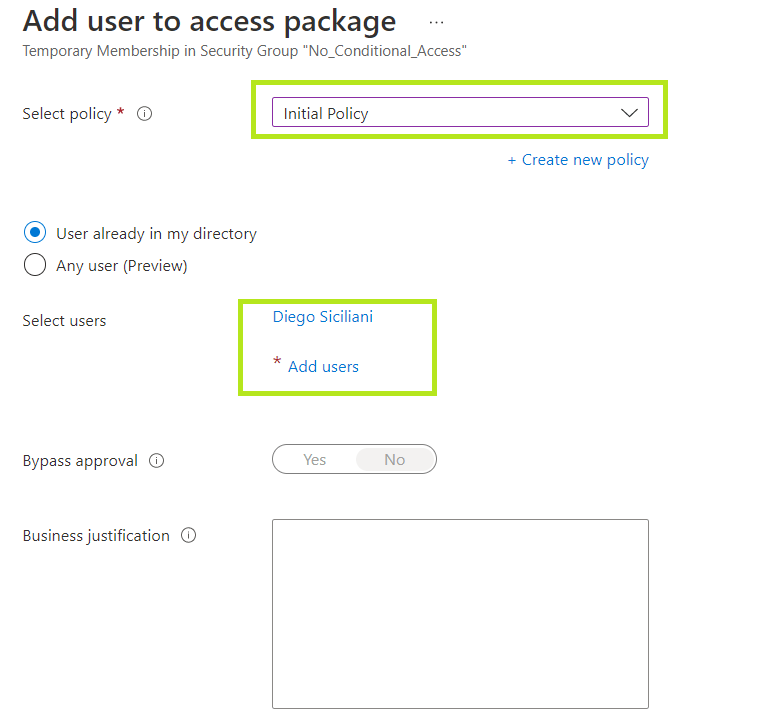
Select the „Initial Policy“ from the dropdown menu and click „Add users“ to select users from you Azure AD.
💡 A policy contains the following settings:
- Who can request this AP?
- Requestor information
- Lifecycle settings
- Custom extensions
The intial policy inherits whatever settings you choose during the process of creating the AP.
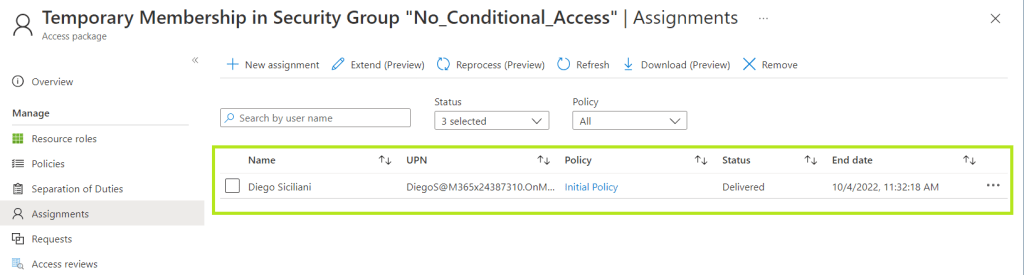
After adding the user, the value in the „Status“ column informs you, if the AP has been delivered to the user. In my case he’s good to go now:
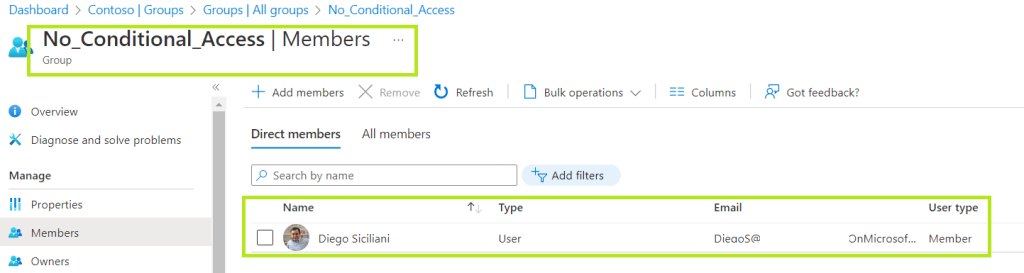
An if we check the security group, we can see, that Diego is now a member (for 4 days 😉).
Feel free to leave a comment, what solutions you use, to manage temporary access to a certain (set of) group(s).
 Solvoj
Hinterlasse einen Kommentar